
PulseDisplay
Your workout stats, live on your iPhone.
PulseDisplay mirrors real-time workout data from your Apple Watch to your iPhone, so you can see every metric on the big screen.
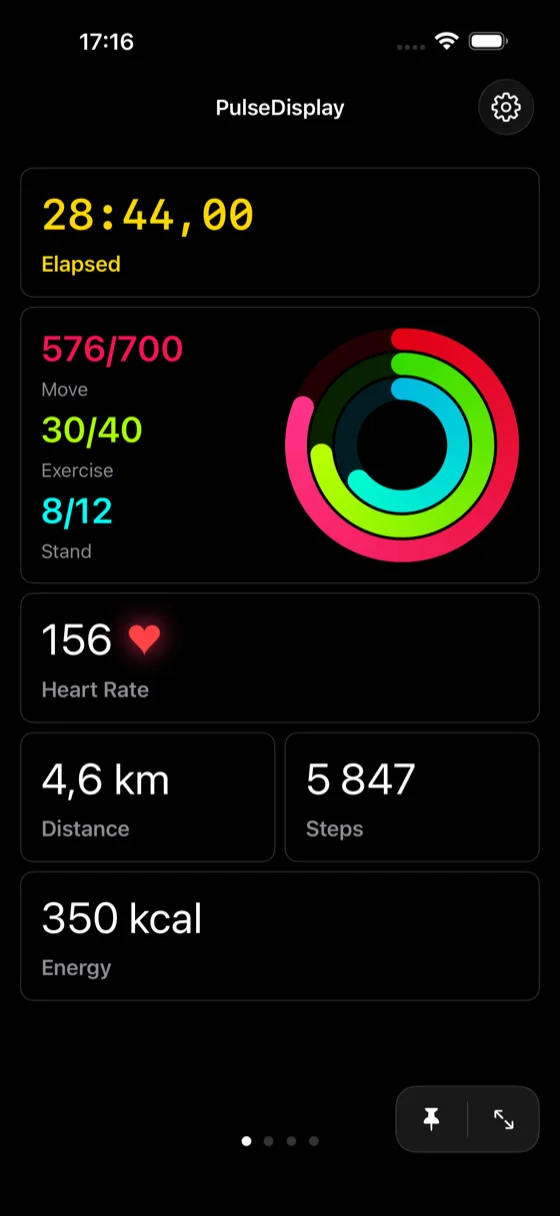
All Your Metrics
Heart rate, calories, distance, and Activity Rings on your iPhone.
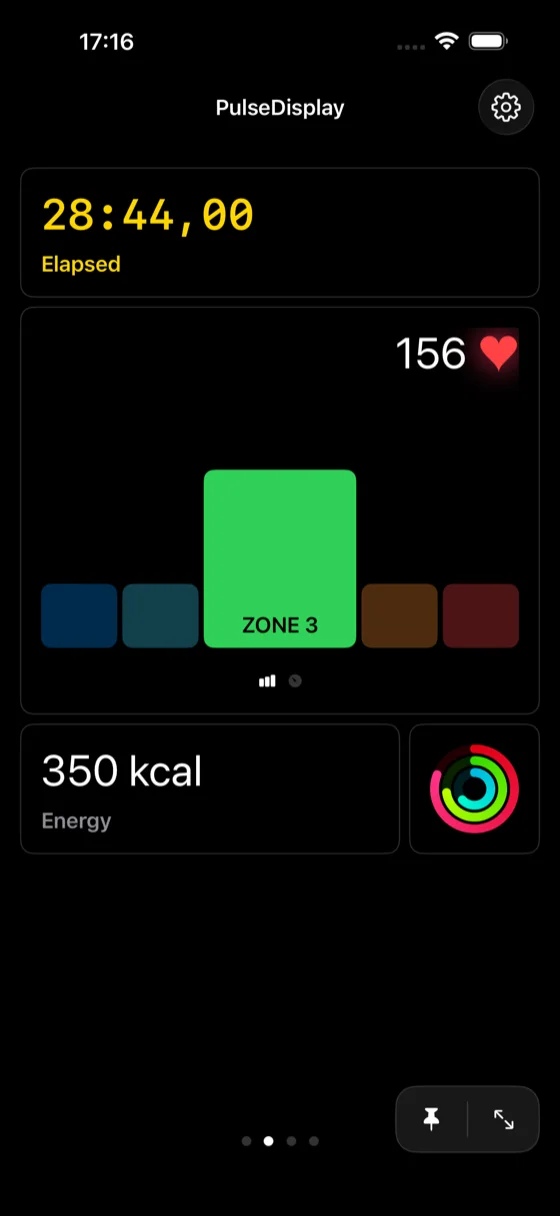
Train In The Zone
Live heart rate zone chart to help you get the most out of every workout.
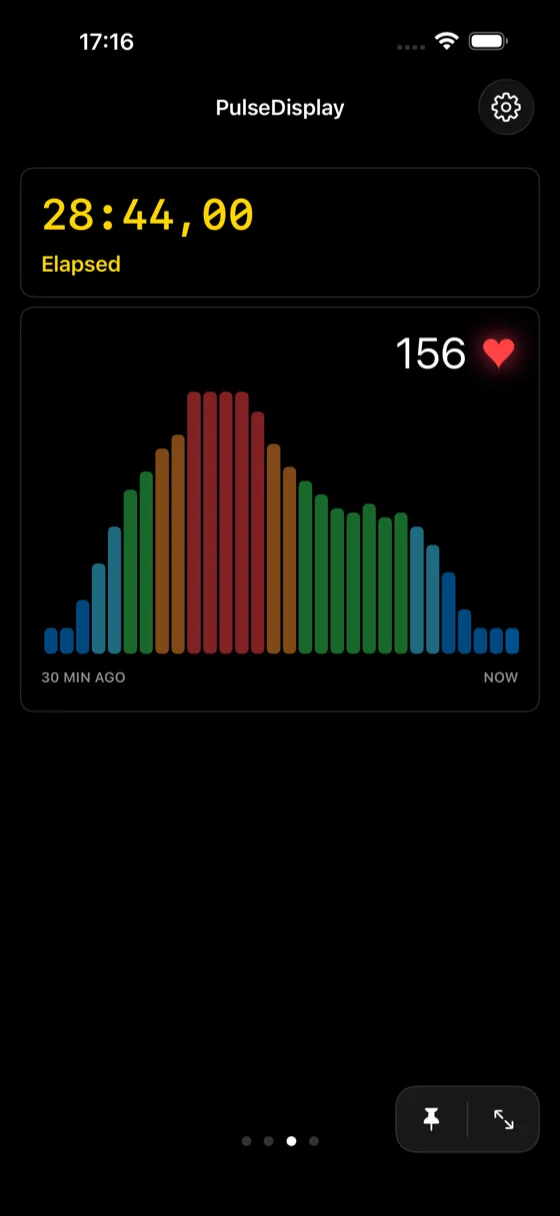
Track Your Effort
See your heart rate over time with a live history chart.
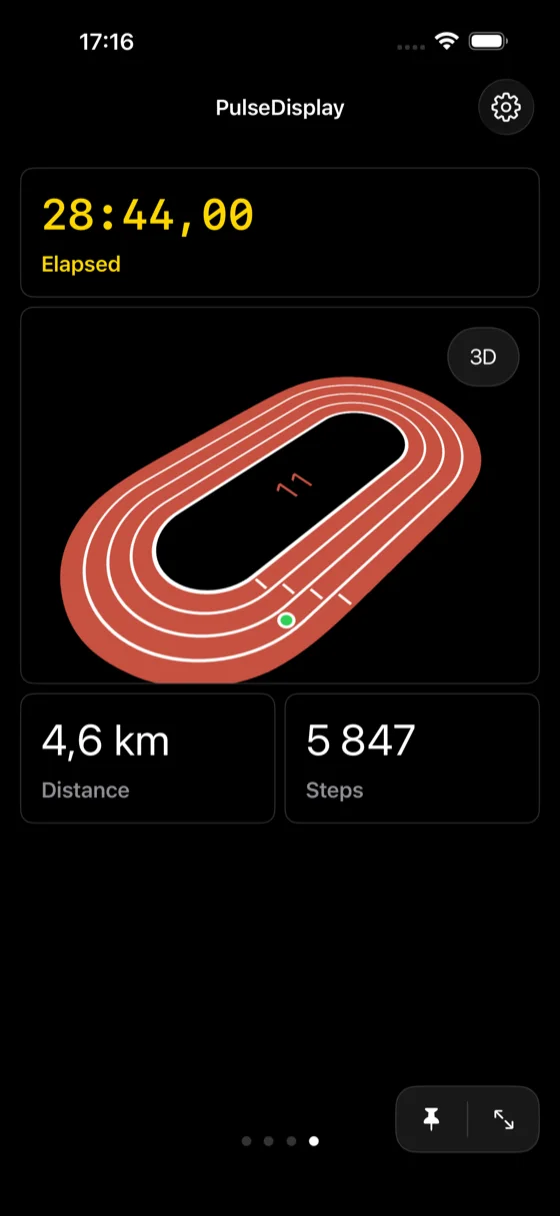
Lap by Lap
Live lap counting and distance tracking for your runs.
Frequently Asked Questions
How are heart rate zones calculated in automatic mode?
PulseDisplay uses the Karvonen (Heart Rate Reserve) method. It reads
your age and resting heart rate from HealthKit, then calculates your
max heart rate as 207 - (0.7 × age). Your heart
rate reserve (max minus resting) is divided into five zones at 50%,
60%, 70%, and 80% thresholds. Values are updated on the first of
every month. You can also switch to manual mode and set your own
zone boundaries.
Does PulseDisplay support landscape mode?
Yes. Unlike Apple's Fitness app, PulseDisplay fully supports landscape orientation on iPhone, so you can prop up your phone and read your stats from a distance.
Does PulseDisplay collect or share my data?
No. All workout and health data stays on your devices. PulseDisplay does not send any data to external servers or third parties. Everything is processed locally using Apple's HealthKit framework.
What do I need to use PulseDisplay?
An Apple Watch paired with an iPhone. You start your workout on the Apple Watch using the PulseDisplay watchOS app, and your stats appear on the iPhone in real time.
How does auto-scrolling work?
During a workout, PulseDisplay can automatically cycle through your pages every 20 seconds. Tap the pin icon in the bottom-right corner to toggle auto-scrolling on or off. When pinned, the current page stays in place.
Is there a full screen mode?
Yes. Tap the expand icon in the bottom-right corner during a workout to hide the navigation bar and page controls, giving your stats the full screen. The controls reappear when you tap the screen, then auto-hide after a few seconds.
How do I start a workout?
Open PulseDisplay on your Apple Watch and choose a workout type — it starts automatically. The iPhone app will connect and begin displaying your live stats right away.
Privacy Policy
Effective Date: August 9, 2025
Your privacy is critically important to us. PulseDisplay is designed to give you a clear, real-time view of your workout data without compromising your privacy. Your data is your own. We make no claims to it and will only use it according to the policies outlined below.
Data Collection and Storage
PulseDisplay's core function is to read your workout data from your Apple Watch and mirror it to your iPhone for easier viewing. This data is processed in real-time and is not stored on any external servers. All your personal and workout data remains exclusively on your own devices (iPhone and Apple Watch).
Protection of Your Information
PulseDisplay does not transmit any of your Personally-Identifying Information or workout data to us or any third-party service. The data transfer that occurs is strictly between your Apple Watch and your iPhone, under your control, using Apple's secure HealthKit framework.
HealthKit Data Usage
To function, PulseDisplay requires integration with Apple's HealthKit. The app will request your permission to access specific types of health data necessary for its operation.
Data Read from HealthKit: PulseDisplay requests read-access to workout data, including but not limited to: heart rate, active energy, workout duration, and distance. This data is read from your HealthKit store in real-time during a workout session and is used solely to display your statistics on your iPhone screen.
Data Written to HealthKit: When you start a workout using the PulseDisplay watchOS app, the app requests permission to write workout data to your HealthKit store. This allows your workouts initiated from PulseDisplay to be properly saved and integrated with the Apple Fitness and Health apps, just like a workout started from the native Apple app.
Your HealthKit data is never collected, transferred to our servers, or shared with any third party. It is only ever processed locally on your devices or transferred to your personal HealthKit data store as per your permission choices.
Changes to This Privacy Policy
We may update our Privacy Policy from time to time. We will notify you of any changes by posting the new Privacy Policy on this page. You are advised to review this Privacy Policy periodically for any changes.